Genuine App Store app · Official Manual

Shadowrocket
Setup Guide

Setup instructions for iPhone / iPad: verify the genuine App Store app and one-time purchase, then import your existing details and test the connection.

Global Routing Config On Demand
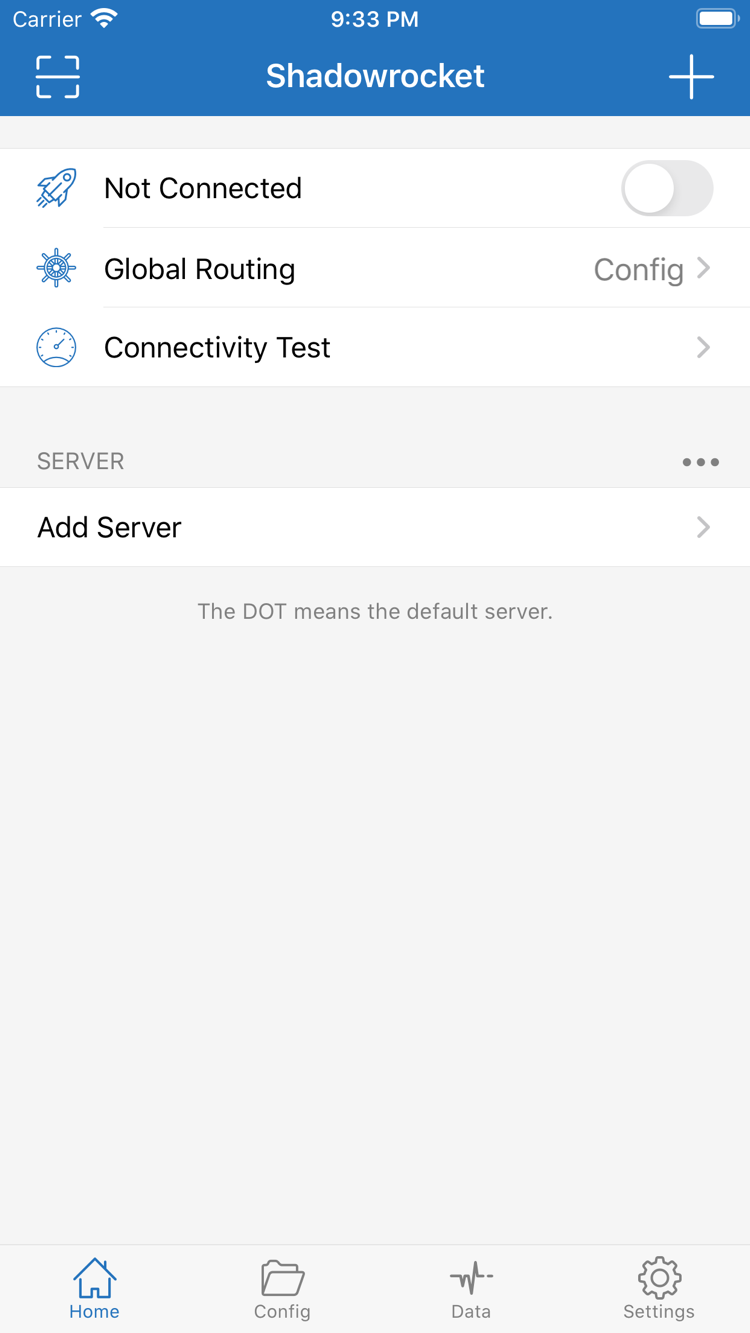
Official Shadowrocket Home screenshot showing the connection switch, Global Routing, and servers
Shadowrocket Home · App screenshot

Configuration, Routing, and Connections

Shadowrocket Features and Settings

Rules and Global Routing

To choose a connection method based on the destination domain or address, open Global Routing on Home, select Config, and check which configuration is active. Config uses rules to direct requests; Proxy sends matching requests through the selected proxy; Direct connects without a proxy. These are routing modes, not server protocols. Changing modes will not fix a server address, credentials, or TLS settings.

Rules are generally checked in order, so an earlier match can affect what happens next. DOMAIN-SUFFIX matches the specified domain and its subdomains; GEOIP matches based on the address’s region; FINAL handles requests that matched no earlier rule. Before editing, keep a working copy of your configuration and confirm that every referenced policy exists. The example on the right shows rule syntax only; example.com is a placeholder domain, not a connection service.

Explore Rule Keywords and Policies →
[Rule] · Syntax Example
  1. DOMAIN-SUFFIX,example.com,PROXY
  2. GEOIP,CN,DIRECT
  3. FINAL,PROXY

Match a condition first, then apply a policy. PROXY, DIRECT, and REJECT each behave differently.

On Demand Connections

On Demand lets the system handle connection requests according to configured network conditions. First make a manual connection and confirm that your existing server, Global Routing mode, and destination access all work. Then open Settings and review On Demand. Keep On Demand separate from rule-based routing: the former determines when to connect; the latter determines the route for a request once made.

After changing network conditions, test the trigger behavior on each network you use. If the connection turns off and then reconnects, check On Demand first instead of repeatedly toggling the Home switch. Network changes, permissions, and current settings can all affect the result. The diagram on the right shows where to find On Demand and diagnostic settings; it is not an app screenshot. Refer to the options shown in the app for the current settings.

Review On Demand Settings →
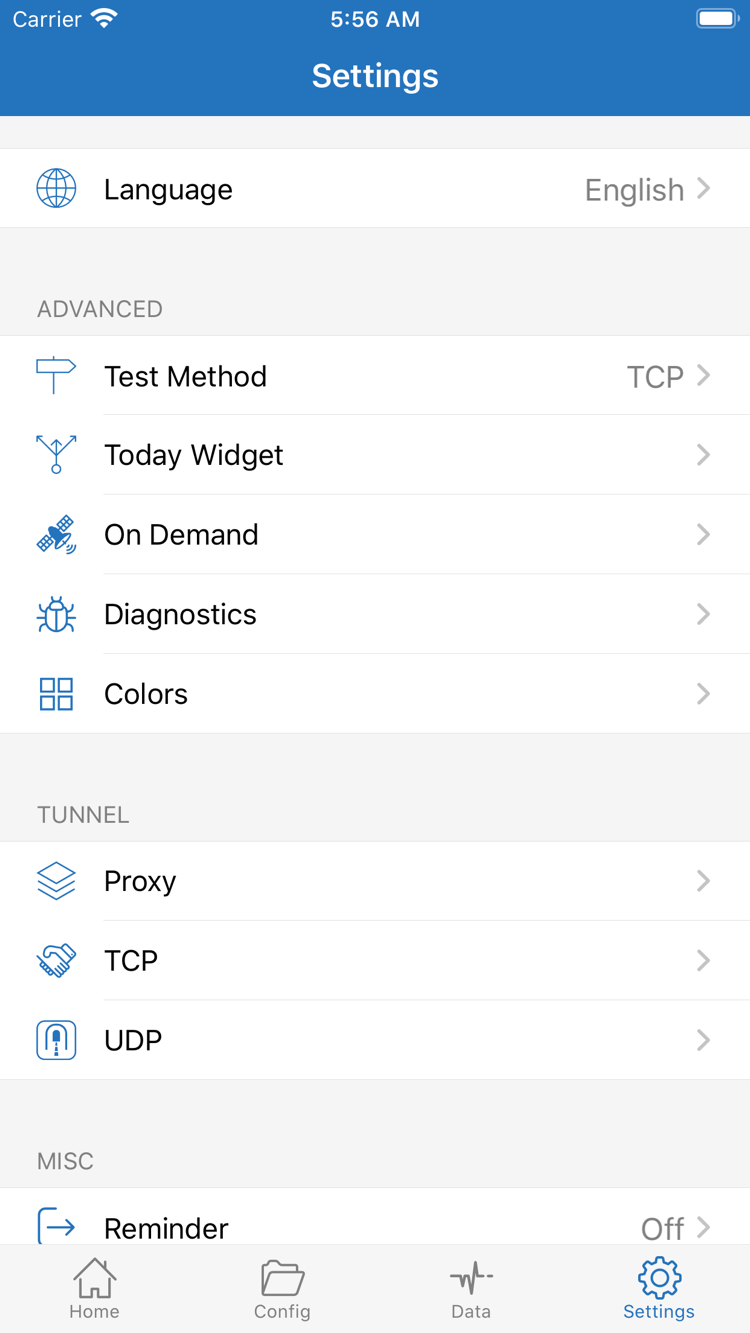
Official Shadowrocket Settings screenshot showing On Demand, Diagnostics, and other options
Settings navigation diagram: On Demand and diagnostic options.

Import Existing Subscriptions and Supported Protocols

Use an existing subscription link to import server details, or tap Add Server to enter the details for an individual server. Confirm the Type, then check Host, Port, and authentication fields one by one. The fields for Shadowsocks, VMess, VLESS, Trojan, Hysteria2, WireGuard, HTTP, and SOCKS5 differ. Don’t guess the type from an address and port, or enter one protocol’s password in another protocol’s identifier field.

Subscriptions are mainly for managing server entries; Config contains rules and related settings. They are not interchangeable. After updating a subscription, check the selected server and its connection parameters again to avoid troubleshooting an outdated entry. Subscription URLs may contain access credentials, so redact the full link before sharing screenshots or logs. This guide assumes you already have your own subscription or server details and explains how to import and use them.

Explore Protocols and Field Definitions →
Shadowsocks VMess VLESS Trojan Hysteria2 WireGuard HTTP SOCKS5

Type must match your existing server details. Even when the protocol name is the same, check the transport, authentication, and TLS fields.

Config Files

Check which Config is active before changing Rule, DNS, or other settings. Importing a configuration does not enable it, and after editing, test it with an actual request. Keep a working copy so you can compare changes to rule order or DNS behavior and avoid changing multiple variables at once.

Explore Config →

Diagnostics, Ping, and Data

Connectivity Test, Ping, and Data answer different questions. A test result shows reachability using a specific method; Data helps you monitor traffic but cannot by itself confirm that a destination is accessible. Before comparing results, use the same Test Method and note the network and server. Then check the logs to identify where the failure occurs.

Explore Test Methods →

Widgets and iCloud Sync

Widgets provide quick access to status and controls; what they display depends on system and in-app settings. Before enabling iCloud sync, check what will sync and which account is active, and keep a separate copy of important configurations. Syncing configurations does not restore purchase records or replace checks of server details, permissions, and the active configuration.

Explore iCloud and Widgets →
Getting Started

Getting Shadowrocket on iPhone and iPad

Shadowrocket is available only on Apple platforms, exclusively through the App Store. Check the product page, then confirm device compatibility and the purchasing account. See the App Store page for system requirements and purchase eligibility.

iPhone

After purchasing and installing Shadowrocket from the App Store, prepare your existing subscription or server details. When you first connect, the system may ask to add a VPN configuration. Verify the app name and follow the system prompts. This permission allows a connection configuration to be created; it does not verify your server details. Next, choose a mode and test access to your destination.

Read the iPhone Guide →

iPad

On a compatible device, use the Apple Account used for the original purchase and check your App Store purchase history and product page for the option to download again. See the App Store listing for purchase eligibility on iPhone and iPad. The screen layout may differ, but the steps are the same: check the server, confirm Config, choose Global Routing, then grant permission and test the connection.

Read the iPad Guide →
Setup Steps

Get Started with Shadowrocket in Three Steps

Start with a basic connection you can verify, then add custom settings one at a time. Changing one thing at a time makes it easier to distinguish incorrect parameters from routing choices or issues with the destination service.

  1. Add Server: Import Existing Details

    Prepare your own subscription link or complete server details. When using Add Server, choose the Type first and enter each field as provided. After importing from a link, check that the entry is complete. Don’t enter a subscription URL in Host or treat a Config file as an individual server. If any details are missing, ask the original provider to confirm them rather than guessing the protocol, port, or authentication method.

  2. Global Routing: Choose a Mode

    For rule-based routing, select Config and confirm the rules and final policy in the active configuration. To troubleshoot the selected proxy route, you can compare with Proxy after understanding its impact; Direct connects without a proxy. Note the original mode so you can restore your usual settings. After changing modes, send a new test request instead of relying on an existing connection to determine whether the new rules are working.

  3. Home: Connect and Test

    Select an existing server, turn on the connection switch, and follow the system prompts to grant VPN configuration permission. Once the connection shows as active, visit a specific test destination and check Connectivity Test results and relevant logs. If it fails, check the network, server, and authentication details first, then DNS and rules. Change one setting at a time. The status icon shows connection status; it does not confirm that access is working.

Read the Full Guide →
Before You Buy

Verify the App and Understand the One-Time Purchase

This is the official Shadowrocket website and manual. Refer to the App Store product page for purchase details and to the app’s interface for settings. Confirm the price, compatibility, and purchase eligibility before paying.

Official Shadowrocket App Store Icon

Check the Developer, Icon, and App ID

Developer: Shadow Launch Technology Limited
App ID: 932747118

On the product page, check that the name is Shadowrocket, then compare the official icon and developer details shown on this site. The id932747118 in the link identifies the product. A similar name in search results is not enough to confirm the app. Verify all three details together rather than relying on search ranking or icon color. Shadowrocket is a paid, closed-source app; purchase and updates are handled through the App Store.

Pricing and Purchase Eligibility

The US storefront reference price is $2.99 as a one-time purchase. Prices are shown in local currency in each storefront; the amount charged is shown at App Store checkout. A one-time app purchase does not determine the term, data allowance, or availability of any external connection service. Opening the client and connecting to a server are separate matters; check each separately when troubleshooting.

See the App Store page for purchase eligibility across iPhone and iPad and compatibility with a specific device. App purchases, configuration sync, and server access are separate: they depend on the store account, app settings, and your existing server details, respectively.

Storefront Availability and Restoring Purchases

Whether you can view and buy the app depends on the storefront and status of your current App Store account. If the product isn’t visible, check the account’s region and any messages from the store. For region-specific account requirements, review the balance, subscription, and payment method conditions shown in the system. Don’t infer the account’s storefront from the page language.

When changing devices or reinstalling, check your purchases using the original purchasing account, then open the correct product page. Restoring the app does not restore every local configuration, so save important rules and server details in advance. Check the App Store for updates. If behavior changes after an update, first verify the active configuration and key settings.

Read the Full App Verification Guide →
Featured Guides

Rules and Protocol Guides

Continue with technical guides organized by topic. Understand matching scope, authentication fields, and policy boundaries before applying them to your configuration. Examples illustrate syntax only and are not ready-to-use connection details.

Protocols

VMess vs. VLESS: UUIDs and Transport Parameters

Understand the differences between VMess and VLESS in terms of authentication, encryption, and transport. Even if both sets of details include a UUID, their Type settings aren’t interchangeable. Confirm the source of all connection details before entering them, and match TLS and transport fields individually rather than reusing settings from another connection.

Compare the Fields →
View All Articles →