No entries after import? Check the subscription content
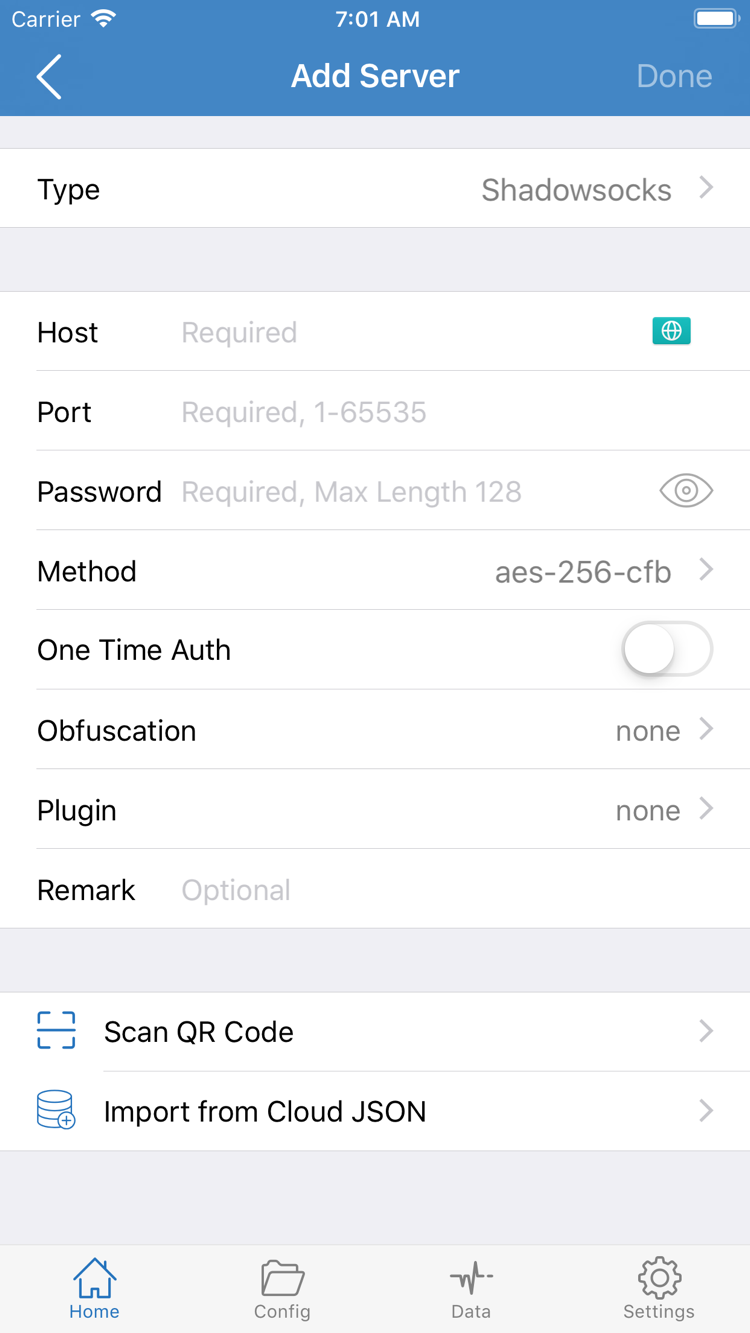
Return to the subscription settings opened from Add Server and confirm that Type is Subscribe and the URL is complete. Make sure the subscription is still valid and returns parseable configuration content, not a login page, information page, or error message. If the original link has changed, update it using valid details from your existing service provider. At this stage, the problem occurs before server details are retrieved, so changing Global Routing or DNS is usually not the first step.
An entry is present, but the connection fails? Check the server details
Open the selected entry for editing and compare Type, Host, and Port with the original details. Then check the authentication and transport fields. Look for missing characters, the wrong protocol, a port intended for another purpose, or TLS or SNI values that do not match the provided details. Do not use Allow Insecure as a substitute for checking the certificate and hostname. If you see a related error, first confirm the server information and device time are correct.
If the same entry keeps failing on your current network, test it on another network you are authorized to use, leaving all other parameters unchanged. This helps distinguish an issue limited to one network from one that occurs in every test environment, but the result alone cannot identify the cause. If you need to check the server status, report the relevant error details to your existing service provider without including full credentials.
The switch will not stay on? Check authorization and automatic connection
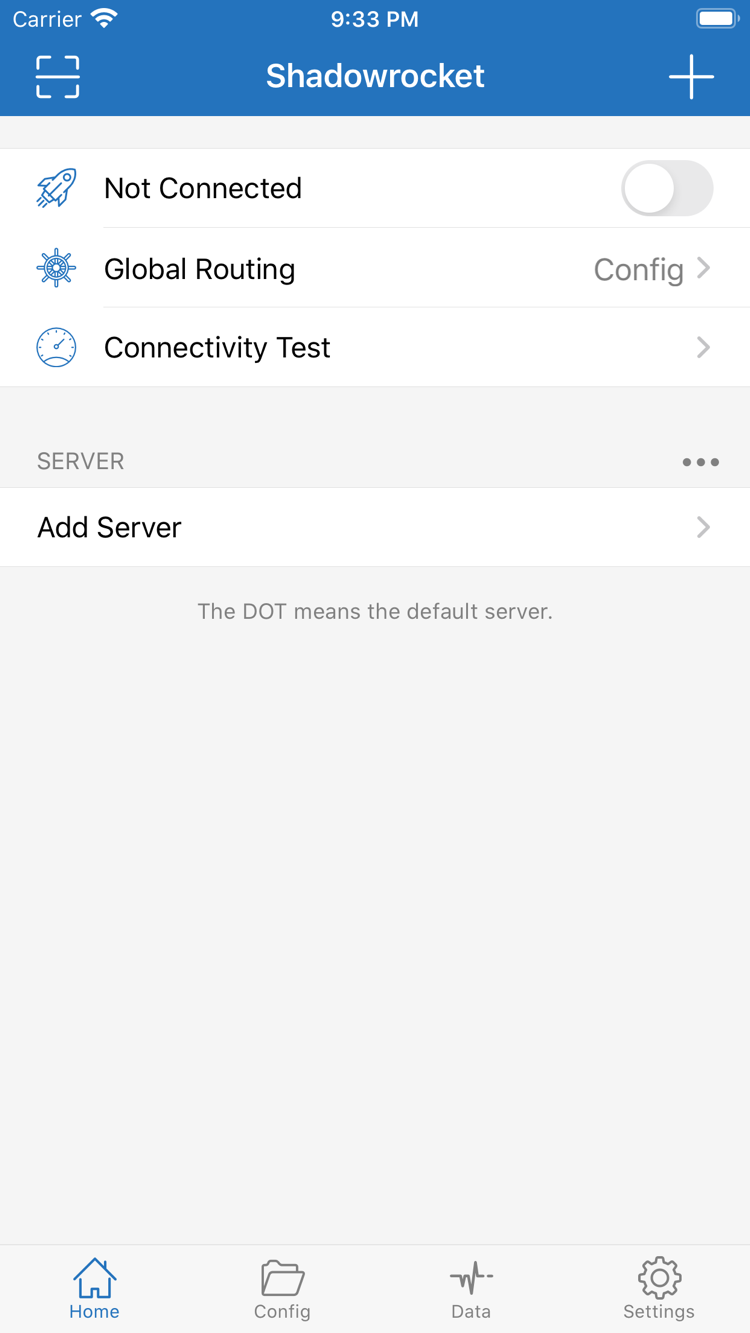
If the connection switch turns off as soon as you turn it on, first confirm that system VPN authorization is complete. Then check whether another VPN connection is active in the system. If the connection comes back after you manually disconnect, open Settings and check On Demand. You can temporarily disable configured on-demand triggers while troubleshooting and control the connection manually. Note the original setting and restore it after testing. For conditions and trigger behavior, see On Demand reference.
Connected, but access is unreliable? Check rules and DNS separately
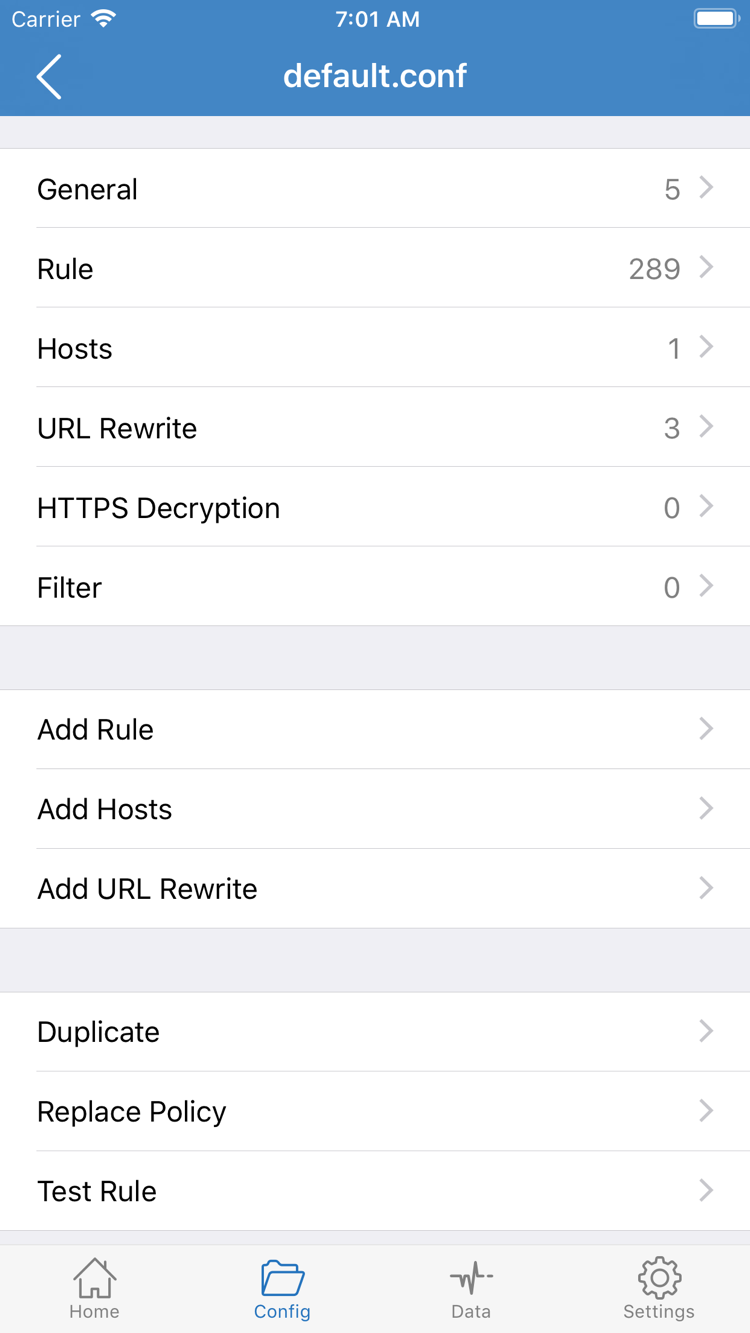
First, compare Config and Proxy as described in the previous step. If the issue occurs only with Config, open Config and check the active file, Rule order, and policy references. A broad rule near the top may match before a more specific rule below it. FINAL handles requests that did not match an earlier rule. Adding a rule does not guarantee that a request will use it.
If you see a domain resolution error, check the DNS settings in the active configuration and whether they are reachable. DNS determines how a domain resolves to an address; server settings determine how the connection is established. They are not interchangeable. Do not paste in multiple DNS settings from unknown sources. Keep the original values and retest the same domain after each change. For more about how the settings work together, see DNS settings explained.
Need more information? Use Diagnostics
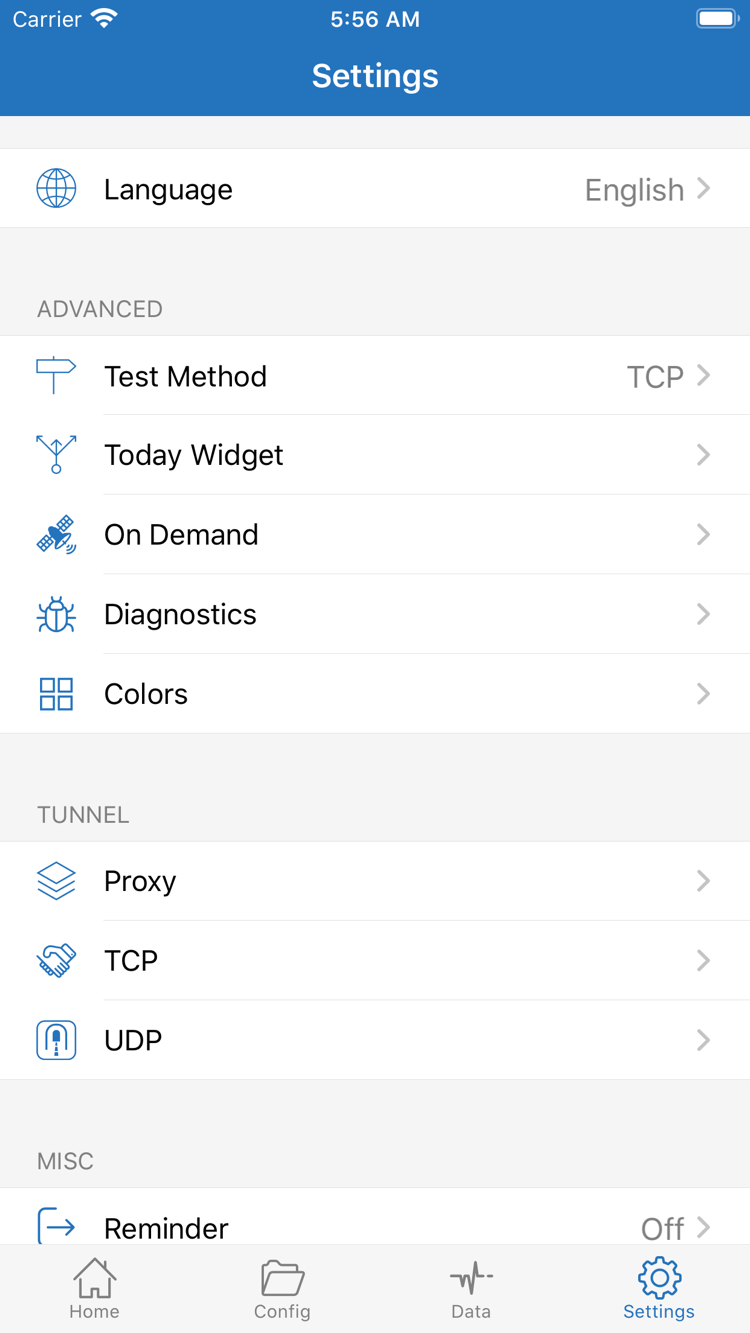
In Settings, open the relevant Diagnostics tools and check Test Method to confirm the test conditions. Record the current mode, whether you are connected, the affected destination, and the steps that led to the issue. This is more useful than simply saying “it doesn’t work.” Today Widget, Proxy, TCP, and UDP in the screenshot cover different settings; do not change them all to troubleshoot one issue. Check the relevant section only when you know a particular setting may be related to the problem.
You should now be able to tell whether the issue is an import that did not complete, a server that cannot connect, a system connection that was not established, or a rules or DNS problem affecting a specific request. If you are still unsure, keep a minimal, repeatable set of steps and continue by symptom in Frequently Asked Questions. For initial setup, you only need one verifiable connection path. Once it is stable, review Widget, iCloud sync, and more detailed adjustments in Settings reference.